Monthly Archives :

April 2022

How AI Can Support Drone Tech Evolution

428 283 Tomas

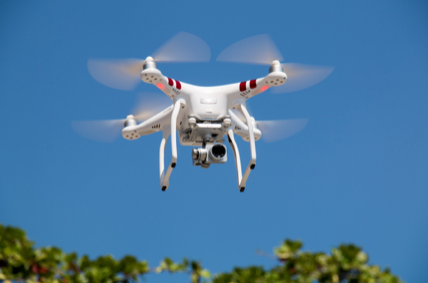
After years of being exclusively used in military circles, drone technology has become a mainstream asset that many industries are optimizing. From film studios to insurance companies to your average hobbyist, the demand for drones has driven its market value to nearly $63 billion. By 2023, the total global shipment of drones is expected to reach close to 2.5 million. This represents a 66.8% compound annual growth rate (CAGR), which is much higher than most other similar technology.

In line with the current diversity among the industries in which drones are being used, drone tech developers are now looking to further empower operations with artificial intelligence (AI). Smart and capable of continuous learning, AI in drones has enhanced and broadened the scope of work and efficiency through which drones are used. Now able to conduct operational support and streamline production, AI-empowered drones are enabling the technology’s evolution towards becoming a more sustainable and widely impactful tool. Here are some of the most exciting ways in which AI is helping drones evolve:

Law Enforcement

One of the most widely reported ways that AI has advanced drone tech is in the realm of law enforcement. Using facial recognition technology, drones are now able to pinpoint persons of interest or suspects among crowds and vast landscapes. In more specific applications, drones can now use AI to track gestures and emotions which can be used for security purposes. For example, drones are being used by police departments to enforce aerial surveillance programs. Because drones on their own are already able to fly significant distances and be equipped with cameras (thermal and 4k imaging), strobe lights, speakers, and other relevant peripherals, they can accurately complement law and order initiatives with less manpower. Using AI these Unmanned Aerial Vehicles (UAVs) can offer end-to-end solutions. This means that local agencies are now also able to receive reconnaissance data, monitor high-traffic locations, and even aid in emergency responses with less personnel and larger scope.

Mass Healthcare

Augmenting healthcare has become paramount since 2020. In the last few years, drones have become vital in delivering aid, especially to underserved communities. First, drones with AI have been used to bring essential healthcare resources to remote or rural areas. During the height of the COVID-19 pandemic, drones have been used to safely transport and drop off sensitive vaccines. This has effectively solved logistics problems in regions that are virtually inaccessible by other vehicles without compromising vaccine integrity. Aside from this, AI-powered UAVs are also being envisioned to make life-saving equipment more accessible. Some drone models can carry up to 500 pounds, so they are used to deliver items like defibrillators. Using AI to navigate terrain and spot patients, UAVs can quickly provide assistance in life or death situations. Today, autonomous drones are slowly being rolled out to be at the ready for any other similar emergencies. In the long run, this can save more lives that would otherwise have to wait for human intervention.

Agriculture

The agriculture industry is one of the most manpower-heavy sectors. However, to keep up with recent demand and constantly evolving market trends, agriculture is also among the early adopters of drone technology. As a matter of fact, automated robots have been used to mitigate irrigation and weeding issues in agriculture for some time now. By 2050, the average farm is already expected to generate around 4 million data points daily by using these systems. In terms of AI, similar to how AI-powered drones are used in construction, these UAVs are able to scan and create maps in real-time. This information is then simultaneously translated into actionable insights that help track field progress, narrow down variables, identify problems, and monitor workflow. When equipped with AI programs that are able to track weather patterns, drones can even help farmers study critical factors like moisture levels and precipitation. On top of all this, drones can also be pre-programmed for planting and crop management purposes. From their sweeping aerial views, drones can spot diseased crops, check on harvest wellbeing, and shoot seedpods at timed intervals.

All that said, though, AI is not a faultless technology. Inarguably, AI’s biggest flaw to date is its bias. Although technically unbiased AI is possible, it’s still got a way to go. Namely, there needs to be further analysis of AI training data, AI decisions must be tested, and AI datasets must be more inclusive. Only through this will AI be a fully empowering component that drone tech can utilize to become even more efficient and impactful.

How To Use Tensorflow Gpu In Jupyter Notebook?

How To Use TensorFlow GPU In Jupyter Notebook

800 600 Rita

GPU’s are becoming increasingly popular for deep learning as they provide substantial speedups over CPU’s. However, setting up your deep learning development environment to use GPU’s can be a bit of a challenge. In this article, we’ll show you how to use TensorFlow GPU in Jupyter Notebook.
TensorFlow is a popular open-source deep learning framework created by Google. It’s used by a large number of companies and organizations, including Twitter, Airbnb, and Uber. TensorFlow allows developers to create sophisticated machine learning models.
GPU’s are well suited for deep learning because they can perform the matrix operations required for neural networks very efficiently. The speedups offered by GPU’s can be significant; in some cases, they can be up to 10 times faster than CPU’s.
To use TensorFlow GPU in Jupyter Notebook, you need to install the following packages:
TensorFlow
Keras
Jupyter Notebook
GPU drivers
You can follow the instructions in the TensorFlow documentation to install TensorFlow. For Keras, you can use pip to install it:
pip install keras
You can install Jupyter Notebook with pip:
pip install jupyter
Finally, you need to install GPU drivers. The instructions for doing this will vary depending on your GPU and operating system.
Once you’ve installed the required packages, you can launch Jupyter Notebook and create a new notebook. In the notebook, you can import TensorFlow and Keras:
import tensorflow as tf
import keras
You can then test that TensorFlow is using your GPU by running the following code:
tf.test.is_gpu_available()
If TensorFlow is using your GPU, you should see the following output:
True
You can now use TensorFlow GPU in Jupyter Notebook to develop your deep learning models!

Python is the only language that is appropriate for graphics processing units. The Jupyter notebook and Python for GPU service must be installed on IBM Cloud Pak for Data to use. The most popular machine learning and deep learning competitions are held by Kaggle, which provides free graphics cards and CPUs. The ability to spin notebooks in and out of the cloud in a matter of seconds allows them to be scaled more quickly and more efficiently. Google GPC virtual machines provide graphical processing units (GPUs), such as the NVIDIA Tesla K80, P4, T4, P100, and V100. As a result of this tutorial, Ubuntu 16 will be the default operating system.

Does Jupyter Notebooks Have Gpu?

Credit: towardsdatascience.com

With GPU environments, you can reduce the time required to train compute-intensive machine learning models you create in a notebook. You’ll be able to run more iterations of machine learning as you gain more compute power.

By following our instructions in this article, you will be able to create your own Docker-based Jupyter notebook server. Furthermore, we look at how to enable GPU acceleration and how you connect to your server using Google CoLab. After all, with this new feature, you can now use your own computer to print your notebooks. The blueprints for a container can be read as blueprints for a container. Multiple containers of an image can be used to run concurrently, making scaling a simple process. We must use the Nvidia toolkit because Docker does not support GPU acceleration at all. You can now get the full benefit of your GPU by utilizing TensorFlow and other machine learning tools.

The documentation laid out the steps needed for me to improve my reading comprehension. You can run a WSL 2 benchmark container to see if it works properly after an installation. We’re testing the most stable TensorFlow build with GPU support, as well as a Jupyter notebook server. A new container should be created by executing the command bellow in PowerShell after docker has been started. The process will begin on the local host and generate a secrete access token for each session. Docker can run applications in isolation containers without the need for any additional steps. To access your GPU, you must first install Nvidia’s CUDA Toolkit. This method is used to generate a GPU-enabled TensorFlow image that includes a Jupyter notebook server.

Gpu-jupyter: Speed Up Your Analysis With Tensorflow And Pytorch

By using GPU-Jupyter on your NVIDIA GPU, you can collaborate on Tensorflow and Pytorch. In other words, by using this feature, you will be able to do more analysis and work on complex projects much more quickly.
However, keep in mind that even if the notebook is running on a host machine, there are some very demanding cells that can be as simple as doubling the size of each of the two machines. The point is that if you want to do serious math, you should own your own computer.

How To Use Gpu In Jupyter Notebook Ubuntu

Credit: druce.ai

To use a gpu with a jupyter notebook on ubuntu, you first need to install the relevant drivers for your gpu. Once the drivers are installed, you can launch jupyter notebook from the terminal and specify which gpu you want to use with the –gpu flag. For example, if you want to use the first gpu in your system, you would launch jupyter notebook with the following command:
jupyter notebook –gpu=0
Once jupyter notebook is up and running, you can create a new notebook and start writing code. To access the gpu from within your code, you can use the following syntax:
import tensorflow as tf with tf.device(‘/gpu:0’): # your code here

Jupyter Notebook Gpu Pytorch

Credit: www.vivaitorre.com

Jupyter Notebook is a popular open-source web application that allows you to create and share documents that contain live code, equations, visualizations, and narrative text.
PyTorch is a popular open-source deep learning platform that enables rapid development and experimentation.
GPUs are well-suited for deep learning tasks as they can provide significant speedups by leveraging the massive parallelism of modern GPUs.
Combining Jupyter Notebook with PyTorch and a GPU can provide a powerful tool for data scientists and machine learning engineers.

You can significantly speed up neural network training in PyTorch by utilizing GPU in your code. Check to see if your GPU is fully supported and the required NVIDIA drivers and libraries are installed using torch.cuda.is_available. If the True command returns, it indicates that the Nvidia driver has been properly installed on the system. With PyTorch, we have the ability to do so. We can see how many GPU cores the tensor belongs to by looking at its index. When you run cuda the call, you set the graphics card to GPU 0 for all tensors created. An operation that involves the placement of two operands on the same device creates the tensor.

Jupyter Tensorflow Gpu Docker

Jupyter tensorflow gpu docker is a great tool for those who want to use tensorflow with a gpu. It allows you to use a docker container to run tensorflow on a gpu, which can be a great way to speed up your computations.

A data scientist is employed by an organization that seeks to deliver fast, data-driven insights. To practice data science, there must be a large amount of computing resources required. As cloud computing becomes more reliant on containers and Docker, it is becoming more common for them to be used to improve resource utilization. How is it possible to manage data science tools such as Jupyter with Python? This could lead to increased productivity as well as decreased costs. After that, you must install Nvidia-Docker and Docker. If you want to use a Docker container with your Tesla K80 GPU, you should make sure it’s visible.

Can I Use Gpu In Docker?

Adding the NVIDIA Container Toolkit to your host is the first step in using your GPU with Docker. Docker Engine can configure GPU support for your containers automatically. The Container Toolkit is now ready to use. You’ve prepared a container for testing.

Get Started With Cuda Programming On Docker With Nvidia Container Toolkit

The NVIDIA Container Toolkit for Docker is an excellent starting point for learning how to program with CUDA on Docker. When running CUDA programs on a Docker container, you can use the CUDA images provided with it.
Before you can use the NVIDIA Container Toolkit in Docker, you must first install it. If you are using CUDA 10.0, the nvidia-docker2 (v2. 1.0) or greater version is recommended. Docker 19 should also be used.
When you install the NVIDIA Container Toolkit for Docker, you can run CUDA images on your Docker containers. Before you can run a Docker container and perform this task, you must first specify the runtime=nvidia flag. To launch CUDA containers, use the nvidia-docker run command and the docker run command.
Because of the new package, GPU-accelerated containers can still run using this command, and the new runtime will be used for that purpose.